ActiveZTERM Beta 5
Updated June 24, 1998
Welcome!
Thanks for participating in the ActiveZTERM beta program. I look forward to receiving your feedback about the suitability and stability of this product. Please be sure to read the Current Issues section so you know where there are bugs so you can avoid things I already know about.
Always keep in mind that ActiveZTERM is not targeted by COOL.STF to typical end-users. It is a developer product that allows you, as the host developer, to integrate your host and PC applications using any ActiveX container. With three lines of VB code, you can write a terminal emulator!
If you haven't read through this information before, please do in it's entirety before skipping down to the download section. There are a number of things you need to know in order to use this control properly.
A Few Important Terms
I don't mean this to be insulting to those who already know this stuff, but you have to understand these terms relative to ActiveX controls:
| Instantiate | The process of creating an ActiveX control, either at design time or run time. |
| Container Application | The application that is hosting the ActiveX control. For example, this could be Visual Basic, Internet Explorer or many others. Also known as just Container. |
| COM | The Component Object Model. This specification is the basis of how things like ActiveX, OLE automation and a ton of other technologies work. |
| Property | A public variable inside the ActiveX control that's exposed via the COM interface. Typically changing a property changes the operation of the control. |
| Method | A public subroutine inside the ActiveX control that can be called from the container application. |
| Event | A subroutine in the user code that is called when certain events occur inside the ActiveX control. |
ActiveZTERM Modes
As you probably know from running ZTERM for Windows, it does take a little while to get ZTERM's emulators running. There are a ton of things that have to be done to get an emulator running, so rather than loading the emulator whenever ActiveZTERM is instantiated, ActiveZTERM runs in two different modes - Start and Stop modes.
Stop Mode
ActiveZTERM loads very quickly in Stop Mode, since it doesn't load any DLLs that are required for emulation. When you draw ActiveZTERM into the container application, it's initially drawn as shown above. To aid you in setting ActiveZTERM's size the control correctly, a property called LayoutGrid can be set True which causes ActiveZTERM to draw like:
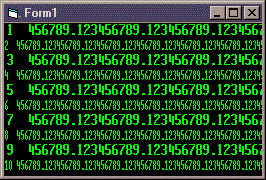
When the layout grid is displayed, you can also change the FontSize property to select the optimum font size for your application. There are four fonts, numbered 0 through 3 and all support both 80 and 132 column operation without altering the character height.
Start Mode
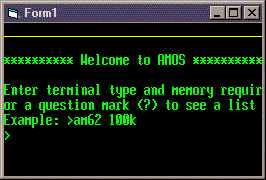
This is the run-time mode of ActiveZTERM, however, it has to be specifically selected by using the StartZTERM method. This allows you to keep the form on the page, perhaps hidden and only start the emulator running when you need to connect to the host.
Creating A Tiny Emulator
Let's now walk through creating a very simple terminal emulator using ActiveZTERM:
| 1. | Launch Visual Basic 4.0 or 5.0. Create a new normal project | |
| 2. | Right click on the toolbar and select Components... | |
| 3. | Select the "ActiveZTERM Control" item | |
| 4. | Draw the ActiveZTERM control onto the form | |
| 5. |
Go to the form's FormLoad Event and paste this code in:
|
|
| 6. | Run the application! |
Writing Something More
Obviously, this terminal emulator isn't much use, so I'm sure you'll all want to go off and rewrite ZTERM for Windows just the way you want it to look. DON'T!
I'm currently working on a VB project that will do 90% of what ZTERM for Windows does and look as close to ZTERM for Windows as is possible. This will ship as part of the Developer Licensee kit when ActiveZTERM ships.
Current Issues
The following are known problems:
Requirements
Installing ActiveZTERM
Special step:
If you previously had ZTERM for Windows build 106 and ActiveZTERM beta 1 on the system, please remove it first and remove ZTERM from the path. Beta 4 ActiveZTERM doesn't need the path, so you might as well remove it.
First step
Download and install ZTERM for Windows 110 from the download page.
Second step:
Follow this link to read the ActiveZTERM beta license agreement. Once you agree to the license conditions, ActiveZTERM will automatically install itself on your system.
For those of you want to use ActiveZTERM in a web environment, you might want to save the .CAB file and .HTML source on your local server for reference.
Sample Applications
| SYSTAT | VB 5.0 application that logs onto to an AMOS machine via telnet, runs SYSTAT and then displays the results along with disk usage graphs. |