
PhotoFile Developer's Guide
|
|
PhotoFile Developer's Guide |
Updated November 7, 2001
Introduction
PhotoFile is an imaging add-on for the ZTERM 2000 terminal emulator. It allows host applications to tell the PC to scan and view images of documents or objects. PhotoFile can capture images from Twain compliant scanners - including auto-feed scanners, Video for Windows compatible frame-grabbers, supports importation of existing image bitmaps in various formats as well as image generation from plain ASCII text.
PhotoFile's image viewer supports fit to width, fit to page and zoom view functions. Deskew and despeckle functions for scanned images are standard features as is scale to grey viewing, allowing a full page to be easily read on a 1024x768 monitor.
Installation
Download the special ZTERM 2000/PhotoFile setup program and execute it. After ZTERM and PhotoFile installation, the security key driver installation program will run; again, follow the on-screen instructions to get the driver installed.
A security key is required in order to use PhotoFile. Depending on the type of security key you're using either plug it into the parallel or USB port. To verify that the security key is functioning correctly, launch the PhotoFile Maintenance shortcut from the COOL.STF group on the Start menu.
PhotoFile's options can be controlled by launching the ZTERM Profile editor and using the File/Application Options menu. When PhotoFile is installed and the security key verifies, three extra tabs will be added.
Record Numbers & Libraries
In order to index documents stored on the PC filesystem, the host application needs to keep track of a record number that's used as the common link between the two systems. The record number starts at 1 and increments to the maximum allowed based on the purchased library count (more on libraries in a minute). It is suggested that records 10 and above be used for scanning operations; record 1 is currently used by the test scan feature in PhotoFile and this number may increase in the future.
The index file on the PC side is called PF.DAT and is built with the pfsetup.exe utility. It maintains status about each set of images scanned into PhotoFile and contains the link information to the library that the image files are stored in.
In order to prevent the PC filesystem from accumulating a large number of image files in a single directory, PhotoFile uses the concept of a library to store images. Each library contains up to 250 x 250 documents with as many pages per document as nessecary. Libraries range from 1 through 250, therefore the limit on the size of PhotoFile documents is 15,625,000.
Each PhotoFile library resides in a folder called "@PF.nnn" (nnn is the library number). Each of these folders in turn contains folders "001" through "250", which in turn contain up to 250 documents per folder. The extension of each file specifies the page number with a range "001" through "255", allowing 255 pages per document.
The following screen capture should give a simple graphical explanation of the format used:
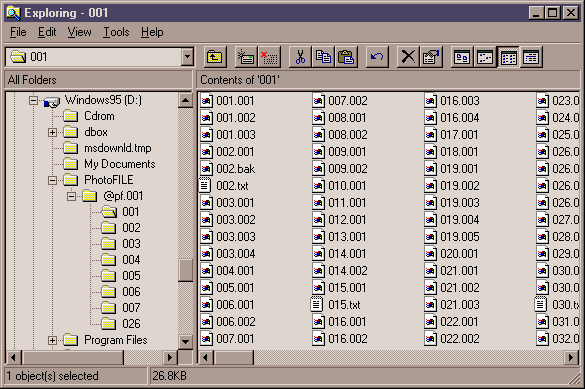
Therefore, record 1 in the PF.DAT database, refers to the following file:
<library 1 path>\@PF.001\001\001.001 ... 001.002 ... 001.003 (etc)
and record 2 refers to:
<library 1 path>\@PF.001\001\002.001 ... 002.002 ... 002.003 (etc)
Dates & Scan Status
PhotoFile maintains two dates for each document: the date of the last page was added to the document and the last time the document was viewed. Each of these dates is passed from the host using a three character YMD format:
| Y | single binary character for year, starting at ! meaning 1933. For example, 1998 is CHR$(98) and 2000 is CHR$(100). PhotoFile is inherently Y2K compliant. |
| M | single binary character for month, starting at ! meaning January. For example, February is CHR$(32 + 2). |
| D | single binary character for day, starting at ! meaning the 1st day of the month. For example, the 14th is CHR$(32 + 14). |
If you want to use the date set on the PC, for PhotoFile dates, replace the YMD sequence with three null characters - CHR$(0) or CHR$(128).
PhotoFile also maintains a scan status for each record in the PF.DAT file. The status of each record can be:
| Free | the record hasn't been used yet |
| In-Use | the record has at least one image file associated |
| Confirmed | the document is marked as read-only and cannot be changed any longer |
The concept behind the "Confirmed" document is that when a document is complete (for example the paperwork concerning one particular order), the host software marks the PhotoFile document as confirmed. Over time, all documents within a library will become confirmed and at this stage, they can be moved onto permanent optical storage like CD-ROM or DVD. By preventing any changes to a confirmed document, PhotoFile is able to simulate permanent WORM storage, even though the library may still be present on magnetic media.
Note: that Confirmed operation is disabled by default.
Escape Sequences
All escape sequences for PhotoFile terminate in a DEL character, CHR$(127). Variable names are surrounded by < and > symbols - these deliminters should not actually be sent to PhotoFile. Parameters or switches surrounded by the { and } symbols indicate optional parameters.
View Document
CHR$(27) CHR$(28) A
Followed by: <ymd><record>@<page>{<switches>}DEL
ymd record page Three characters switches: /m Enable mode-12 host window /e Send ESC to host on window close
Close Scan Window
CHR$(27) CHR$(28) B
Followed by: DEL
Closes the image window and mode-12 window if open
Scan/Grab Document
CHR$(27) CHR$(28) C
Followed by: <ymd><record>@<page>{<switches>}DEL
ymd record page Three characters switches: /a Turns on auto-feeder mode /n<pages> Scans the specified number of pages using the autofeeder. If no page count is provided, PhotoFile will scan until the feeder is empty /i Imports an existing image, rather than scanning. User is shown standard Windows file-selection dialog with which to choose the file(s) they want to import. /r<degrees> Specifies the post scan autorotation in tenths of a degree. For example, to rotate by 90 degrees, /r900 would be used. /b Scans from the batch acquired using batch scan. This switch should be used with no other switches. If the batch is empty, PhotoFile will automatically perform an ADF scan for as many pages as loaded in the scanner. /d If present turns off the automatic post scan image display.
Add Notes
CHR$(27) CHR$(28) D
Followed by DEL
Launches Windows Notepad with a unique file for the currently displayed scan.
Confirm Scan
CHR$(27) CHR$(28) E
Followed by <ymd><record>DEL
Marks the PhotoFile record as confirmed. Once a record is confirmed, it's contents cannot be changed.
Get PhotoFile Names
CHR$(27) CHR$(28) F
Followed by <record> DEL
Sends the name of the file(s) containing the PhotoFile record followed by a carriage-return. If no images are associated with the record, then just a carriage-return is sent. Also note that this call returns the wildcard name of the file - for example, "C:\PF\@pf.001\001\008.*"
Copy PhotoFile Images
CHR$(27) CHR$(28) G
Followed by <source-record>:<source-page>+<dest-record>:<dest-page>DEL
source-record source-page Three characters. dest-record dest-page Three characters.
Scan from File
CHR$(27) CHR$(28) H
Followed by: <ymd><record>@<page><switches>DEL
ymd record page Three characters switches: /f<filename> Specifies the ASCII file to process in ZTERM's log folder. This switch is required. /l<width> Sets the page length. By default, this is 66 lines. /o<filename> Specifies an overlay to set on top the image generated by this function. The image file can be any size since it will be scaled to fit the image generated by this function, however, it should have the same aspect ratio as pages generated by this function. The image file must be a 1-bit per pixel file in any supported image format (PCX, TIF etc.) and should be in the same folder as the PF.DAT index file. /w1<width> Sets the number of characters per line in 10 CPI mode (default is 80) /w2<width> Sets the number of characters per line in 17 CPI mode (default is 132) /a Generates a landscape document. Default is portrait layout. This command reads the ASCII text file in ZTERM's log folder and rasterizes it into a PhotoFile document. The simplest way of getting a file into the log folder from the host is to use ZTERM's CHR$(27) CHR$(24) sequence prefixing the name with an exclamation point. Then use transparent print mode to actually send the file:
PRINT CHR$(27);CHR$(24);"!pf.txt";CHR$(0);
PRINT CHR$(20); !turn on transparent print
PRINT "Hello World"
PRINT CHR$(24);When PhotoFile processes the text file, it looks for two special sequences to switch between 80 column (10 CPI) and 132 column (17 CPI) modes. These are:
CHR$(20) CHR$(21) to switch to 10 CPI mode
CHR$(20) CHR$(25) to switch to 17 CPI modeThe text rasterizing routine also supports the formfeed character - CHR$(12) to make a new page and CHR$(9) for tab stops.
Scan Batch
CHR$(27) CHR$(28) I
Followed by a DEL
Scans any pages loaded into the ADF into the PhotoFile batch on the local PC. These pages can then be viewed as thumbnails and moved into actual PhotoFile documents by using the scan option with the /b switch.
Get License Info
CHR$(27) CHR$(28) J
Followed by a DEL
Sends two decimal bytes to the host containing licensed features and library count for security keys that are licensed to add libraries. For example:
PRINT CHR$(27);CHR$(28);"J";CHR$(127);
INPUT "";FLAGS,LIBS
IF FLAGS AND 1 = 1 THEN PRINT "Display"
IF FLAGS AND 2 = 2 THEN PRINT "Print"
IF FLAGS AND 4 = 4 THEN PRINT "Scan"
IF FLAGS AND 8 = 8 THEN PRINT "Configure: ";LIBS
Delete Images
CHR$(27) CHR$(28) K
Followed by <record>:<page>DEL
Removes the image file from the PhotoFile libraries.
Print Document
CHR$(27) CHR$(28) L
Followed by <record>{@<start-page>{-<end-page>}}{:<printer>}{<switches>}DEL
record start-page The starting page number to print. Three characters. end-page The ending page number to print. If both omitted, the entire document is printed. If the ending page is omitted, the single start page is printed. Three characters. printer The name of the Windows printer to output to. If this is missing, PhotoFile will prompt for the printer. switches: /d<description> Sets the document name that Windows uses when displaying status information about the print job.
Attach PDF File
CHR$(27) CHR$(28) M
Followed by: <ymd><record>@255DEL
ymd record page Not really a parameter since the page number must be 255. This command will show a standard Windows file selection dialog allowing the user to point to a PDF file. Once the user selects a PDF file, it will be copied into the appopriate library with the standard filename convention but with an extension of 255.
When this document is displayed, PhotoFile will display this logo in the middle of the image window to alert the user to the PDF's presence. The user can then click the PDF button on the toolbar to launch the Acrobat Reader (or full Acrobat) to display the PDF file. The logo disappears automatically after five seconds or before if the user moves the mouse over the PhotoFile window.
If the document contains only a PDF file (no scanned images), PhotoFile will automatically launch the Acrobat Reader.
In order to use this feature, you must use ZTERM's Application Options (in the Profile Display's File menu) to setup the location of the Acrobat Reader or the full version of Acrobat. If using Acrobat Reader 4.0 and this program was installed in it's default directory, this field will be:
C:\Program Files\Adobe\Acrobat 4.0\Reader\AcroRd32.exe
More Information
We also suggest reading the PhotoFile walkthough for examples of these escape sequences.
